
Description
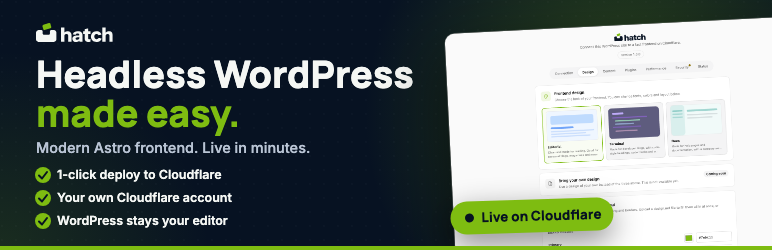
Make your current WordPress site headless without moving it. Hatch Connect gives the site you already run a fast, modern Astro frontend and puts it online in your own Cloudflare account, all from your dashboard.
You keep your host, your plugins, your content and the block editor you know. Your visitors get a separate, lightweight site.
Everything runs inside your site. There is no Hatch server, no Hatch account and no Hatch-hosted deploy service. The plugin talks to Cloudflare directly, using a Cloudflare token (a long password) that you create and paste in.
The problem Hatch Connect solves
Going headless is usually a project, not a switch. Most headless WordPress solutions ask you to start over before anything works:
- Build and host a separate Next.js or Gatsby app
- Install and learn GraphQL, WPGraphQL or FaustWP
- Move your content into a new CMS, or to a new host
- Rewire your SEO, forms and shop plugins by hand
- Keep a separate app updated and running
Hatch Connect skips all of it. It connects to the WordPress setup you have today.
- No host change. WordPress stays exactly where it is.
- No migration. Your posts, pages, media, menus, users and plugins stay put.
- No rebuild. Yoast, Rank Math, Fluent Forms, WooCommerce and Advanced Custom Fields keep working and feed the new frontend.
- No code. A setup guide, one Deploy button and a live site.
- Fully reversible. Disconnect undoes the WordPress side, and your site is as it was.
What is headless WordPress?
Think of a restaurant. WordPress is the kitchen, where the cooking happens and nobody wants to give it up. The Astro frontend is the dining room, which is what your guests see. A waiter (the REST API) carries finished dishes from one to the other.
Classic WordPress does both jobs in one room, on every single visit:
CLASSIC WORDPRESS

Visitor --> your web server --> PHP runs --> database query --> HTML built --> Visitor
            (one machine, one busy kitchen, cooking and serving every table)
Headless WordPress with Hatch splits the work in two:
HEADLESS WORDPRESS WITH HATCH

You write a post                          A visitor opens a page
      |                                          |
      v                                          v
WordPress (the kitchen)  --- REST API --->  Astro site on Cloudflare (the dining room)
posts, pages, menus,        the waiter      builds the page and serves it
media, users, plugins       (hatch/v1)      from Cloudflare's network
Every website has a body and a head. The body is the back end, where you write and manage content. The head is the front end, the part visitors see. Headless means the head is taken off and put somewhere else. WordPress stays the body. A separate Astro site becomes the head.
What you get
- A faster, lighter site for your visitors
- Zero plugin bloat on the frontend. Nothing from WordPress plugins loads on visitors’ pages.
- No framework JavaScript (no React or Vue) in the visitor’s browser. Pages are plain HTML and CSS.
- Served from Cloudflare’s global network, close to your visitors.
- 1-click deploy to Cloudflare
- Hatch uploads the frontend as a Cloudflare Worker and shows you the live address.
- Use a free workers.dev address or your own domain.
- Your Cloudflare account, your site, your control. Delete it any time.
- Content that stays fresh
- Publish or update in WordPress and the frontend refreshes on its own. No rebuild, no waiting for a build to finish.
- Three starter designs
- Editorial, Terminal and Docs, ready to use and easy to restyle.
Plugin bridge: your plugins keep working
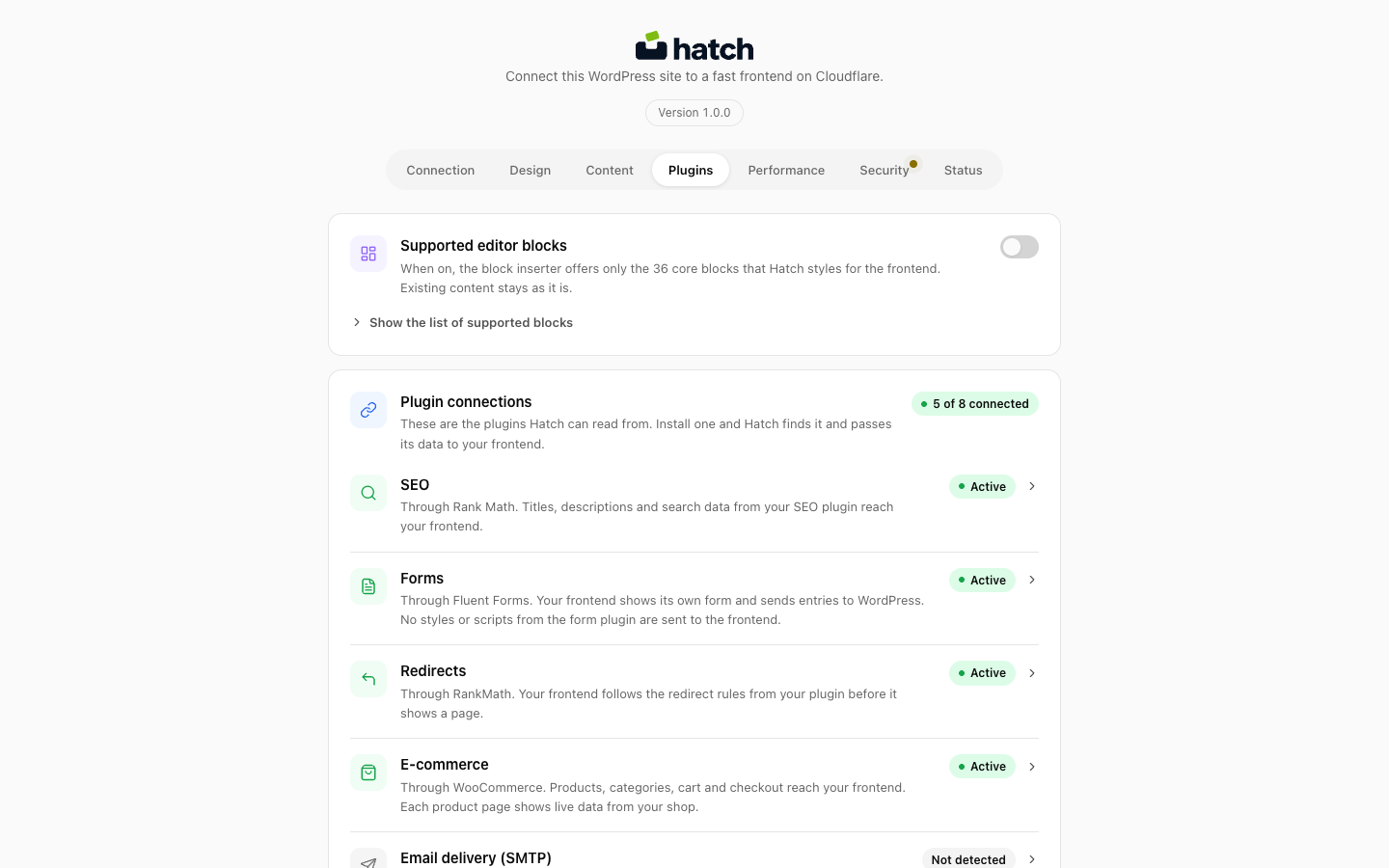
Hatch Connect detects the plugins you already use and passes their data to your frontend. Nothing to configure. If a plugin is not installed, its feature stays off.
- SEO plugins: Yoast SEO, Yoast Premium, Rank Math, Rank Math Pro, RankReady
- Page titles, meta descriptions, Open Graph and Twitter card tags, JSON-LD structured data and sitemap entries reach the frontend.
- RankReady adds
llms.txt,.well-known/mcp.json, an AI summary and FAQ schema for AI search.
- Form plugins: Fluent Forms, WPForms (Lite and Pro), Gravity Forms, Contact Form 7
- Your frontend shows each form natively and sends entries back to WordPress. No form plugin CSS or JavaScript is loaded.
- Shop: WooCommerce
- Products, categories, cart, checkout, order summary and customer account pages.
- Stripe and PayPal payment fields when you switch on that gateway in WooCommerce.
- Custom fields: Advanced Custom Fields (ACF and ACF Pro), Secure Custom Fields, Meta Box, Pods
- Field values reach the frontend when the field group is set to show in REST.
- Custom post types: Custom Post Type UI, JetEngine, Pods
- Redirects: Redirection, Rank Math redirects, Yoast Premium redirects
- Your frontend follows your existing redirect rules.
- Email delivery (SMTP): FluentSMTP, WP Mail SMTP, Post SMTP, Easy WP SMTP
- Form entries from your frontend go out through the email plugin you already set up.
- Spam protection: Cloudflare Turnstile on forms, comments and the login page
- Two-factor reminder: WP 2FA, Two-Factor, miniOrange, Wordfence, Solid Security
SEO features
- Page titles and meta descriptions from Yoast SEO or Rank Math
- Open Graph and Twitter card tags for social sharing
- JSON-LD structured data (schema markup), including Article and FAQPage with RankReady
- XML sitemap and sitemap index,
robots.txtand an RSS feed - Breadcrumb navigation
- Clean, server-rendered HTML that search engines can read
llms.txtand.well-known/mcp.jsonfor AI search and AI agents (with RankReady)- Redirects carried over from Redirection, Rank Math or Yoast Premium
- Option to keep your WordPress address out of search results, so only the frontend shows up
Performance features
- No framework JavaScript in the browser
- Edge delivery from Cloudflare Workers
- Server-side rendering (SSR) with page caching: fresh for 60 seconds, then served stale for up to an hour while it refreshes
- WebP and AVIF image delivery with long-lived caching
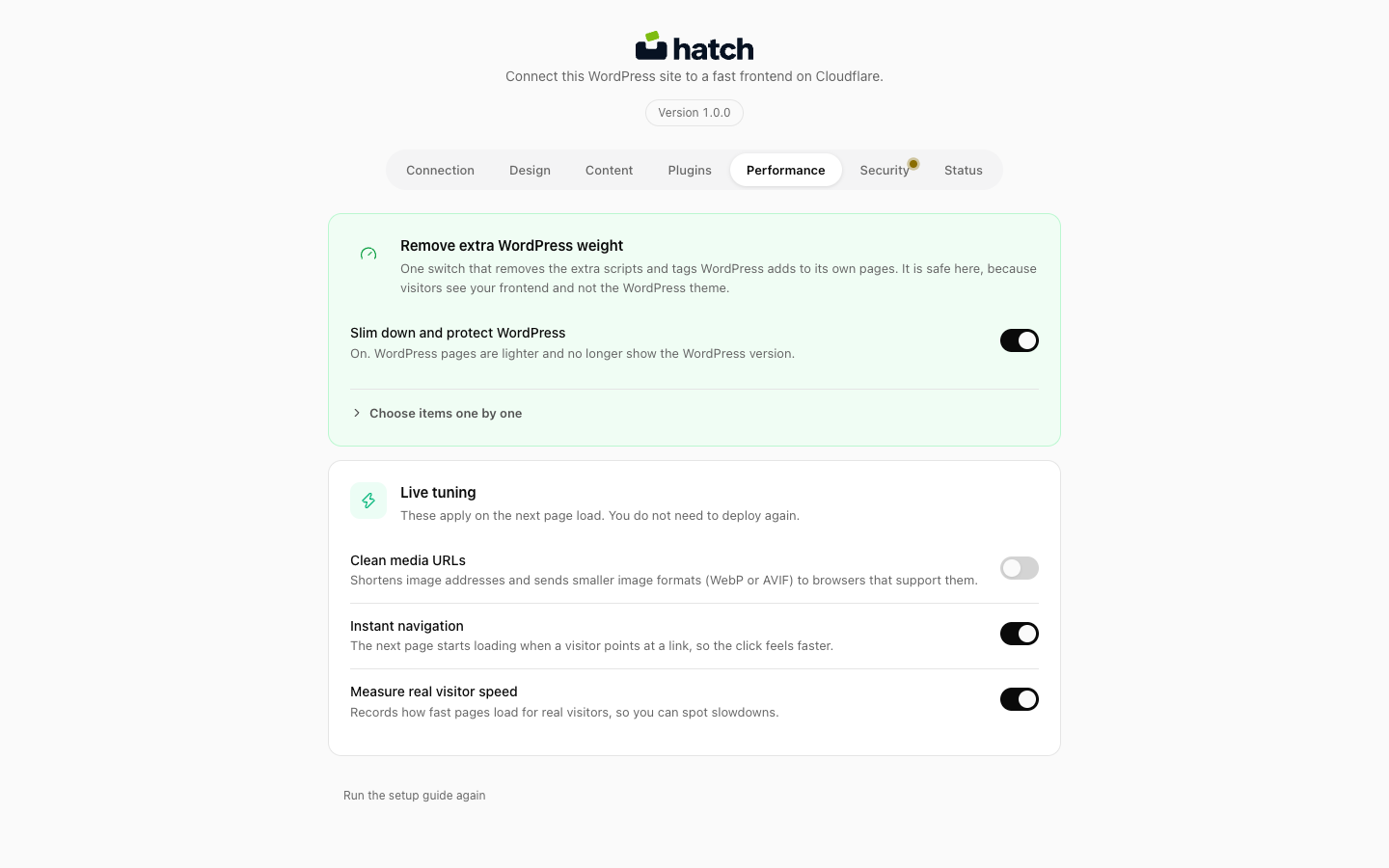
- Instant navigation: the next page starts loading when a visitor points at a link
- Measure real visitor page load timings in your own Worker log
- Slim down WordPress with one switch:
- Remove the emoji script, embed script and oEmbed discovery
- Remove extra page header tags: RSD, shortlink and feed links
- Remove block library CSS and global styles
- Remove jQuery Migrate from public pages
- Turn off self-pingbacks and XML-RPC pingbacks
- Send WordPress feeds to the feed on your frontend
WordPress hardening and security
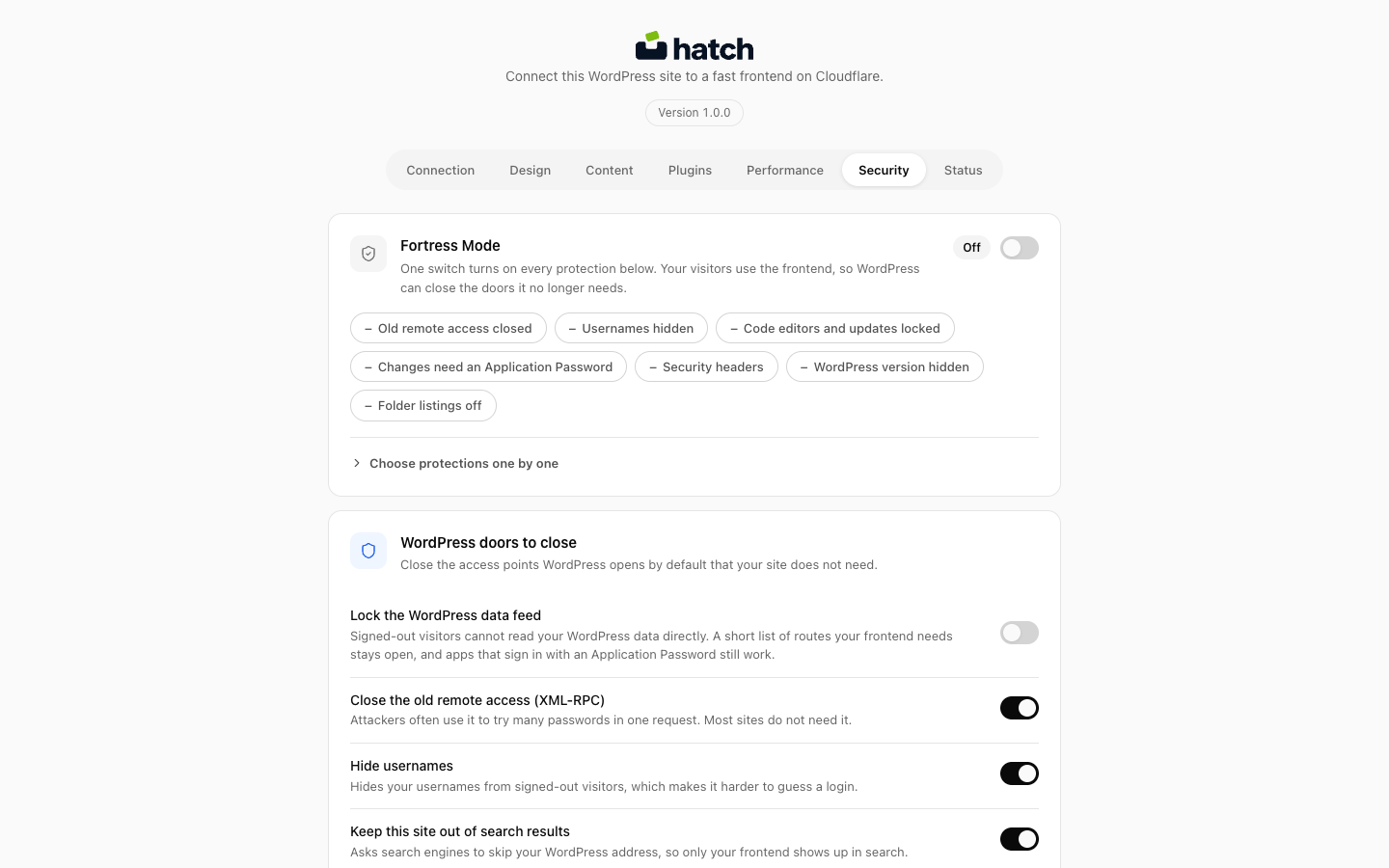
Visitors use the frontend, so WordPress can close the doors it no longer needs. One Fortress Mode switch turns on every protection below, or choose them one by one.
- Lock the REST API from signed-out visitors, with a short allow-list your frontend needs
- Block XML-RPC, an old feature attackers use for password guessing
- Stop user enumeration by hiding usernames from the REST API
- Login lockout after repeated failed sign-ins, with your own attempt and time limits
- Role guard: keep Subscribers and customers out of wp-admin
- Cloudflare Turnstile bot protection on the sign-in page, comment form and frontend forms
- Security headers: HSTS, X-Frame-Options, X-Content-Type-Options (nosniff), Referrer-Policy, Permissions-Policy, and a Content Security Policy (CSP) on the frontend
- Disable the file editors and filter raw script code out of posts
- Hide the WordPress version from page source and asset URLs
- Disable directory browsing in the uploads folder, and block script execution there on Apache
- Application Password only for REST write access
- Keep your WordPress address out of search results, so only the frontend is indexed
- Two-factor reminder for admins
Customisable, and no coding needed
- Pick a design, then set your colours, fonts and layout in the Design tab
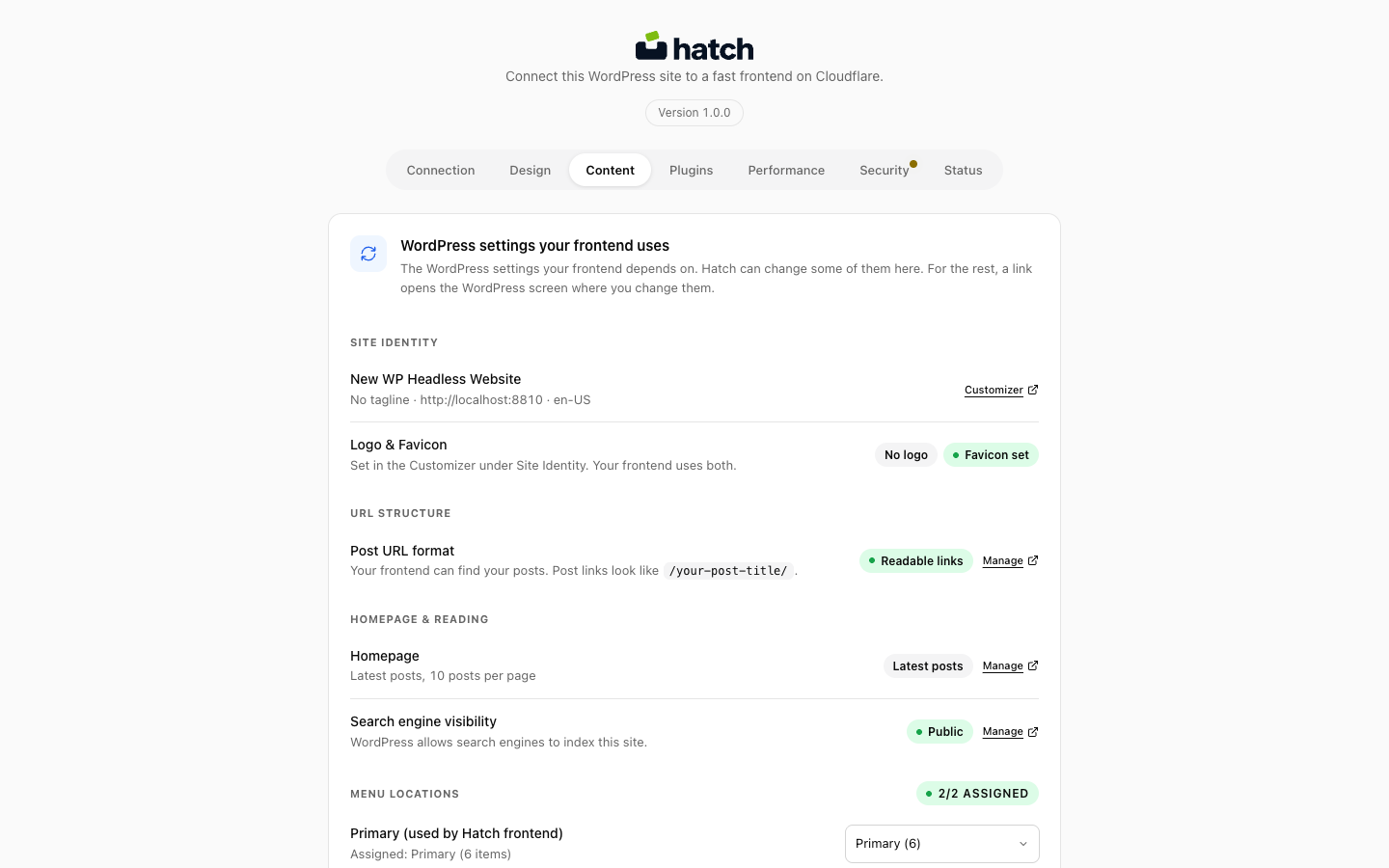
- Set your site name, logo, homepage, menus and comment settings in one Content tab
- Switch reading features on or off: progress bar, sticky share bar, table of contents, breadcrumbs, reading time, last updated date, next and previous links, related posts, author bio, and category tabs with Load more
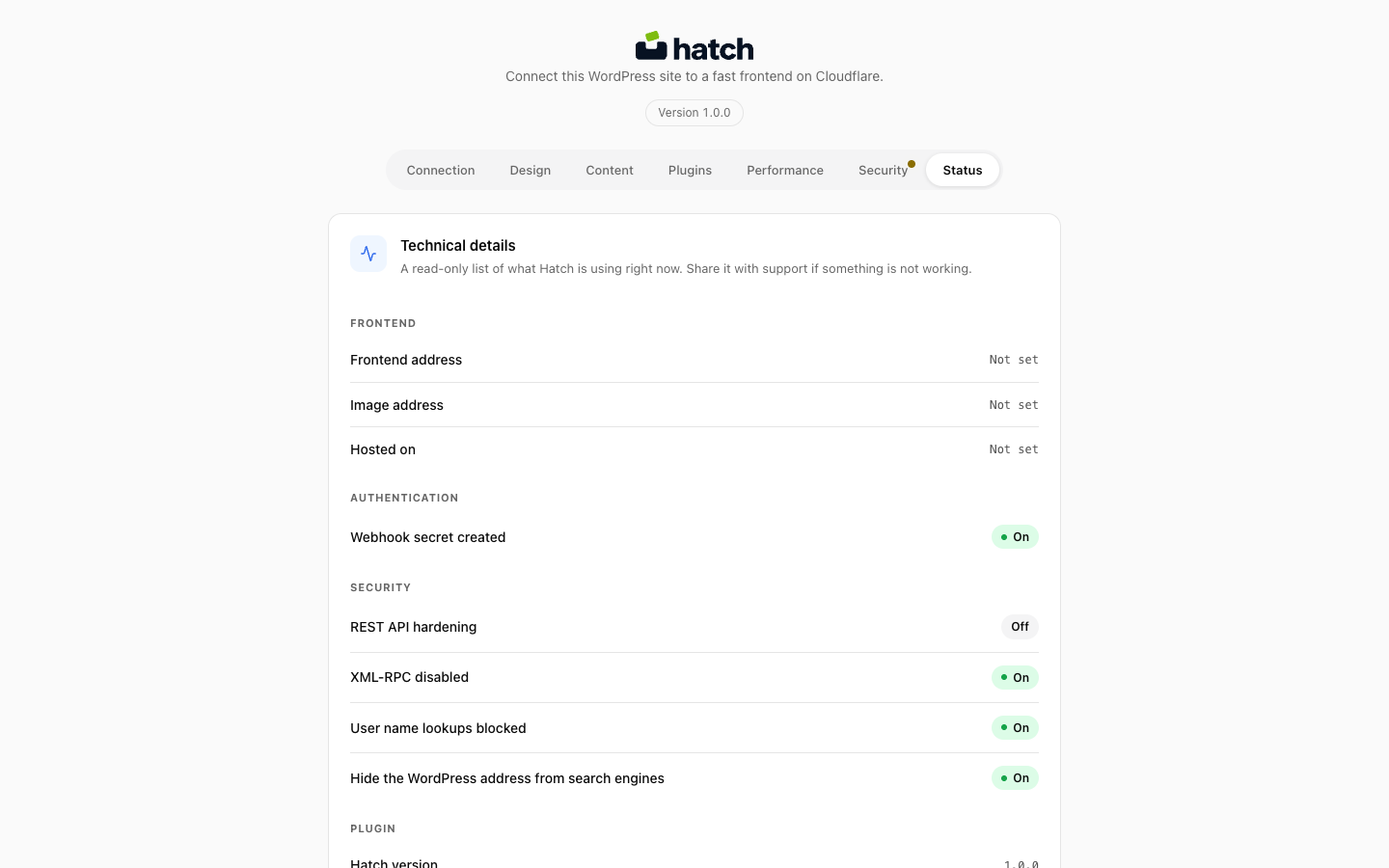
- A setup guide and a Status checklist show what works and what needs attention
- Developers can go further: the
hatch/v1REST API works with any frontend, and the Astro project is open source
How Hatch Connect compares with other headless WordPress solutions
Faust.js, WPGraphQL, Next.js, Gatsby and headless CMS products are good tools, and each fits some teams better. Statements about other projects come from their public documentation and may change over time.
- Hatch Connect vs Faust.js (a Faust.js alternative). Faust.js is a framework for building a Next.js frontend. Its getting-started guide has you install the FaustWP and WPGraphQL plugins and then write and run your own app. Hatch gives you a ready-made Astro frontend that it deploys for you, and it needs neither plugin.
- Hatch Connect vs WPGraphQL (a WPGraphQL alternative). WPGraphQL adds a GraphQL API to WordPress so a developer can ask for exactly the fields they want. Hatch uses the REST API already built into WordPress, plus its own
hatch/v1routes for menus, SEO data, forms and shop data. No GraphQL to install or learn. - Hatch Connect vs a Next.js build. A custom Next.js and WPGraphQL build gives you every choice and every chore: you write the app, host it and keep it updated. Hatch deploys a finished frontend from the dashboard.
- Hatch Connect vs Gatsby and static site generators. A static generator typically builds every page ahead of time, so a change waits for the next build. Hatch uses server-side rendering (SSR), so a post you just published can appear without a rebuild.
- Hatch Connect vs a headless CMS such as Sanity or Contentful. A separate CMS means moving your content, your editors’ habits and your plugins. With Hatch, content stays in WordPress and only the frontend moves.
What Hatch Connect cannot do
- Deploy outside Cloudflare. This version deploys to Cloudflare only. The REST API works with a frontend hosted anywhere.
- Carry over page builder layouts. Elementor, Divi, Bricks and WPBakery layouts depend on your WordPress theme’s CSS and JavaScript, which the frontend does not load. Block editor content works.
- Show theme output. Plugins that print output through your theme are not carried over. Check the deployed site before you rely on one that is not listed above.
External services
This plugin connects to two Cloudflare services, and only after you set them up.
Cloudflare API deploys your frontend using the token you paste in. Terms and Privacy policy
Cloudflare Turnstile is optional spam protection, off until you add your keys. Terms and Privacy policy
Source code
The full source of everything in this plugin, including the compiled parts, is public at https://github.com/eticastudio/hatch. The plugin has two compiled parts.
- Admin screen (
build/admin). The readable source is inadmin-react/srcinside this plugin, together withpackage.jsonandpackage-lock.json. To rebuild it, install the packages with npm and runnpm run buildin the plugin folder. It uses@wordpress/scripts. - Frontend that Hatch uploads to your Cloudflare account (
frontend-bundle). Its source is the Astro project in theastro-starterfolder of https://github.com/eticastudio/hatch. To rebuild it, install Node.js 22.12 or newer, clone that repository and, from its root, runPLUGIN_FILE="/path/to/hatch-connect/hatch.php" OUT="/path/to/hatch-connect/frontend-bundle" bash scripts/build-frontend-bundle.sh. The build uses fixed placeholder addresses, and Hatch replaces them with your own addresses when it deploys.
Third-party components and their licences are listed in THIRD-PARTY.txt inside the plugin.
Screenshots

Installation
Before you start
- WordPress 6.4 or newer and PHP 7.4 or newer.
- A free Cloudflare account. The free plan includes Workers.
- A WordPress address that is public over https, so Cloudflare can reach it.
- About 10 minutes the first time.
Install the plugin
- Go to Plugins, Add New, search for Hatch Connect, then choose Install Now and Activate. You can also upload the zip with Plugins, Add New, Upload Plugin.
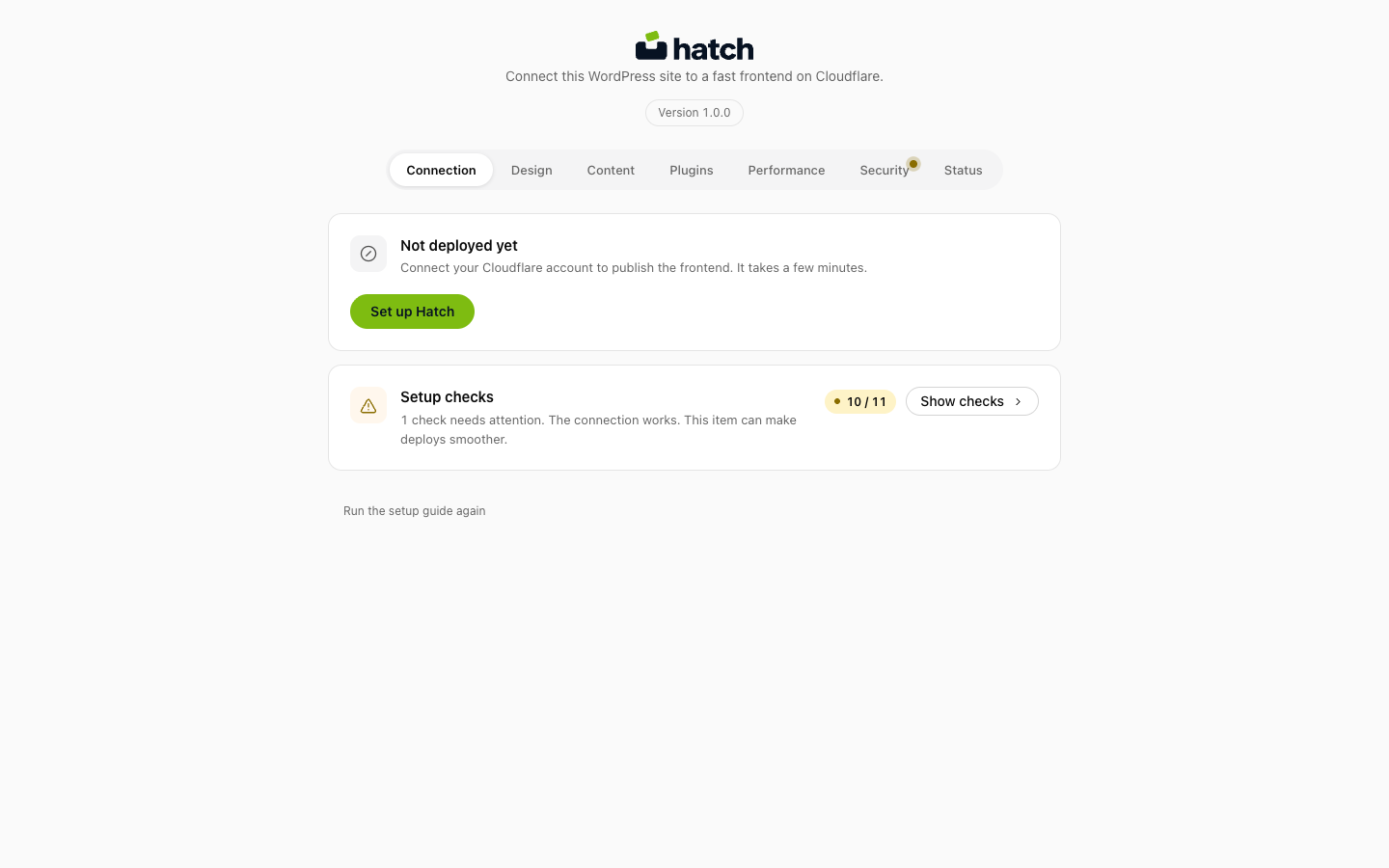
- The setup guide opens by itself. If you skip it, open Hatch in the admin menu and choose Run the setup guide again.
Create your Cloudflare token
- Open https://dash.cloudflare.com/profile/api-tokens and choose Create Token, then Create Custom Token.
- Add these permissions:
- Account, Workers Scripts, Edit (required)
- Account, Account Settings, Read (recommended, lets Hatch list your accounts)
- Zone, Zone, Read and Zone, Workers Routes, Edit (only if you want your own domain instead of a workers.dev address)
- Limit the token to one account and, for a custom domain, one zone.
- Copy the token. Cloudflare shows it only once.
Create the account your frontend reads with
Hatch never creates users or passwords for you. You make one low-privilege account yourself:
- Go to Users, Add New and create a user with the Subscriber role.
- Open that user’s profile and, under Application Passwords, create a new password. Copy it.
Hatch refuses any account that can edit other people’s posts or manage users, plugins or the site.
Deploy
- In the setup guide, paste the Cloudflare token and choose Check token.
- Choose where your frontend will live: a free workers.dev address or your own domain.
- Enter the user name and Application Password from the step above.
- Read the list of changes, tick the box that confirms them, and press Deploy.
- Open the live address Hatch shows you. Use the Status tab to see what works and what needs attention.
What Hatch changes on your site
Nothing changes until you tick the consent box and press Deploy.
- Frontend account.
- You create it, Hatch does not.
- It reads content only.
- Hatch rechecks it on every sign-in and refuses it if it gains editing or admin rights.
- Disconnect forgets the stored copy. You revoke the Application Password in your profile.
- Redirect to your frontend.
- After a successful deploy, visitors to the raw WordPress address go to the same path on your frontend.
- View post, View page and archive links in wp-admin point there too.
- wp-admin, wp-login, the REST API, feeds, sitemaps and previews are never redirected.
- Feeds move only if you switch on WordPress feeds under Performance.
- Disconnect turns the redirect off.
- Themes. Hatch does not install, bundle, switch or remove any theme.
- Frontend sign-in.
- Off until you switch on Frontend accounts (Hatch, Content).
- While it is off, the
hatch/v1/authroutes do not exist. - Login uses core
wp_authenticate()and sets the normal WordPress login cookie, because WooCommerce keeps carts and orders on that session. - Registration works only when “Anyone can register” is on. It uses core
wp_create_user()and the New User Default Role. - Staff accounts are refused and sign in at wp-admin.
- Sessions use signed tokens (JWT, valid 24 hours), a per-IP rate limit and a honeypot field. Logging out or changing a password ends earlier sessions.
- Permalinks. Plain permalinks stop the frontend reading your posts. The setup guide offers to switch to
/%postname%/and does it only if you tick the box. - Application Password. It is stored encrypted on your site and given to your Worker as an encrypted secret. Hatch never shows it again.
- Uploads folder. On Apache, hardening adds a marked block to
uploads/.htaccess. It is removed on uninstall. - Local or temporary addresses only. If WordPress runs on
localhost, a Docker host or a trycloudflare.com address, Hatch copies one file,hatch-url-rewrite.php, intowp-content/mu-plugins/so images and links use your frontend address.- It is never installed on a normal public domain.
- It is removed when Hatch is deactivated or deleted.
- A file with that name that Hatch did not write is never changed or deleted.
- If the folder is not writable, Hatch shows the exact manual step.
- Scheduled check. A 15-minute check of your own frontend address, only after you have saved one.
Data Hatch stores
- Form submissions. When a visitor submits a form through the frontend, Hatch stores the field values, the form and provider name, the visitor’s IP address and browser user agent in the table
wp_hatch_form_submissions(your table prefix may differ).- Entries older than 90 days are deleted automatically, at most once a day.
- Change the period with the
hatch_form_retention_daysfilter, or return 0 to keep entries. - There is no personal-data export or erasure tool for this table yet. To answer a data request, delete the matching rows from the table.
- Comments are stored as normal WordPress comments.
- Login attempts. The frontend sign-in rate limit and the optional login lockout keep short-lived counters per IP address in transients.
Uninstalling
- Deactivating removes the helper file in
mu-pluginsand stops Hatch’s scheduled events. It keeps the stored frontend account name and encrypted password, so a deployed frontend keeps working if you reactivate. - Deleting the plugin always removes:
- the helper file in
mu-plugins(only if Hatch wrote it) - the encrypted Cloudflare token, the webhook and cache-refresh secrets and the Turnstile secret key
- deploy and connection state, scheduled events and temporary data
- the marked block in
uploads/.htaccess - the stored frontend account name and encrypted Application Password
- the helper file in
- Kept unless you opt out. Settings, design choices and form submissions stay unless you tick “Remove all data on uninstall” in the Hatch settings before deleting.
- Not deleted. Hatch never created your frontend user or its password, so revoke the Application Password in your profile. The Worker stays in your Cloudflare account until you remove it under Workers & Pages.
FAQ
-
What is headless WordPress?
-
It means WordPress is only your back office. You write and manage content there as usual, and a separate frontend shows it to visitors. Hatch sets up that frontend on Cloudflare for you and keeps it in step with WordPress.
-
What is the difference between headless, decoupled and Jamstack WordPress?
-
In everyday use they mean nearly the same thing: the back end (WordPress) and the front end (what visitors see) are separate. “Headless” and “decoupled” describe the split. “Jamstack” usually describes a frontend built from pre-made files plus APIs. Hatch’s frontend renders pages on request through Cloudflare Workers.
-
Do I need to know how to code?
-
No. The setup guide walks you through a Cloudflare token, a low-privilege WordPress account and one Deploy button. Developers can go further and build their own frontend against the REST API.
-
Is Hatch a headless WordPress plugin for Astro?
-
Yes. WordPress stays your back office and the block editor stays as it is. Hatch exposes your content over the WordPress REST API and deploys an Astro frontend to Cloudflare Workers in your own Cloudflare account. You can also build your own frontend (Astro, or any other) against the same
hatch/v1API. -
Is Hatch an alternative to Faust.js or WPGraphQL?
-
It is a different route to the same goal, a headless WordPress site. Faust.js asks you to build a Next.js app and install the FaustWP and WPGraphQL plugins. WPGraphQL adds a GraphQL API that you query yourself. Hatch deploys a ready-made Astro frontend and reads WordPress over REST. See “How Hatch compares” in the Description.
-
Do I need WPGraphQL or GraphQL?
-
No. Hatch does not use GraphQL and does not need the WPGraphQL plugin. It uses the REST API that is built into WordPress.
-
Which is better, the REST API or GraphQL?
-
Neither is better in every case. Both are ways for one program to ask another for data.
REST works like visiting an address: you request
/wp-json/hatch/v1/...and get the data back as JSON. It is built into every WordPress site, so there is nothing extra to install.GraphQL works like filling in an order form: you send one query that lists exactly the fields you want. It needs an extra WordPress plugin such as WPGraphQL.
Hatch is built on REST, which keeps the plugin list on your site short and lets any developer build a frontend against the
hatch/v1routes. -
Is Hatch an alternative to building a Next.js or Gatsby frontend myself?
-
For many sites, yes. Instead of writing, hosting and maintaining your own app, you deploy a finished Astro frontend from your dashboard. If you need a fully custom app, build it against the
hatch/v1REST API. -
What is Astro, and why Astro?
-
Astro is a web framework for content sites. It builds pages as plain HTML and CSS and sends very little JavaScript to the browser, which suits blogs, magazines, docs and shops that are mostly reading.
-
What is SSR? Will new posts show up without a rebuild?
-
SSR means server-side rendering: a server builds each page when a visitor asks for it. Hatch’s frontend does this on Cloudflare Workers, so a published post can appear without rebuilding the whole site. Publishing also tells the frontend to refresh. By default pages are cached for 60 seconds and may be served stale for up to an hour while they refresh.
-
Will my SEO settings carry over?
-
Hatch reads the titles, descriptions and social settings you already set in Rank Math or Yoast SEO and passes them to the frontend. If no SEO plugin is active, the frontend uses your post title and excerpt. The frontend also provides a sitemap, an RSS feed, a robots.txt file and JSON-LD structured data. No tool can promise a ranking, so Hatch makes no ranking promises.
-
Will my site be faster?
-
Hatch sends less to the browser than a typical theme: no UI framework, no plugin CSS or JavaScript from WordPress. Real speed still depends on your content, images and settings, so measure your own site before and after, for example with PageSpeed Insights.
-
What is a Cloudflare token?
-
It is a long password that you create in your Cloudflare account. It lets Hatch upload your frontend, and only with the permissions you tick. The setup guide shows each step and the list of permissions to copy.
-
What is a Worker?
-
A Worker is a small program that runs on Cloudflare’s network. Hatch uses one to serve your frontend. It gets a free address ending in workers.dev, and you can use your own domain instead.
-
Can I use my own domain?
-
Yes. Choose your domain in the setup guide. For a custom domain the token also needs Zone Read and Workers Routes Edit permissions.
-
Does Hatch create users or passwords?
-
Not for itself.
- The deploy never creates users or Application Passwords.
- You create a Subscriber account and an Application Password yourself, then enter them in the setup guide.
- Hatch refuses any account that can edit other people’s posts or manage users, plugins or the site.
- Visitors can create their own accounts only if you switch on Frontend accounts and WordPress’s “Anyone can register” is on.
- Frontend sign-in and registration routes are off until you switch on Frontend accounts.
- They use WordPress’s own authentication, so login-limit and security plugins still apply.
- Registration uses the core “New User Default Role”.
-
How do I undo it?
-
Open Hatch, then the Connection tab, then Disconnect. The redirect stops and the saved Cloudflare token and frontend account password are forgotten. Revoke the frontend’s Application Password in your profile afterwards. The Worker stays in your Cloudflare account until you delete it there, under Workers & Pages.
-
Am I locked in?
-
No. Your content stays in WordPress and your frontend lives in your own Cloudflare account. Disconnect turns the redirect off, and the
hatch/v1REST API works with any frontend you build. -
Do I need to pay for Cloudflare?
-
The free Cloudflare plan includes Workers. Cloudflare sets the limits and prices; see https://developers.cloudflare.com/workers/platform/limits/. Hatch itself has no fees.
-
Does Hatch see my Cloudflare token?
-
Your token stays on your own server. It is encrypted before it is saved, sent only to Cloudflare, never returned to your browser and never written to logs. Hatch has no server of its own to receive it. Disconnect (Hatch, Connection) deletes it, and so does deleting the plugin.
-
What permissions does the token need?
-
Account, Workers Scripts, Edit is required. Account Settings, Read is optional. Zone Read and Workers Routes Edit are needed only for a custom domain. Use a token limited to one account and, for a custom domain, one zone.
-
Can I deploy somewhere other than Cloudflare?
-
Not in this version. Hatch deploys to Cloudflare only. The REST API works with any frontend you build.
-
Do I have to use the frontend Hatch deploys?
-
No. The
hatch/v1REST API works with any frontend you build. The one Hatch deploys (built with Astro) is the quick way to get started. -
Can I change how the frontend looks?
-
Yes. Pick one of three designs (Editorial, Terminal or Docs) and set your own colours, fonts and layout in the Design tab. Developers can also take the open source Astro project from https://github.com/eticastudio/hatch and change it.
-
Do I need custom blocks?
-
No. Write with the standard block editor. Hatch reads what you write over REST.
-
Do I have to move hosts or migrate my site?
-
No. WordPress stays on your current host with your content, users and plugins exactly where they are. Hatch only adds a frontend in your Cloudflare account and, once you press Deploy, sends visitors from the raw WordPress address to it. Disconnect turns that off.
-
Which plugins does Hatch Connect work with?
-
Yoast SEO, Rank Math and RankReady for SEO. Fluent Forms, WPForms, Gravity Forms and Contact Form 7 for forms. WooCommerce for shops. ACF, Secure Custom Fields, Meta Box and Pods for custom fields. Custom Post Type UI and JetEngine for custom post types. Redirection for redirects. FluentSMTP, WP Mail SMTP, Post SMTP and Easy WP SMTP for email. If a plugin is not installed, its feature stays off. See “Plugin bridge” in the Description.
-
Does it work with WooCommerce?
-
Yes. When WooCommerce is active the frontend includes shop, product, cart, checkout, order summary and account pages. Stripe and PayPal payment fields appear on the checkout page only if you switch on that gateway in WooCommerce and add its public key.
-
Does it work with Elementor, Divi, Bricks or WPBakery?
-
No. Layouts built with a page builder depend on the builder’s own CSS and JavaScript from your WordPress theme, which the Astro frontend does not load. Content written in the block editor works.
-
Isn’t headless overkill for a small blog?
-
Possibly. A small blog on a good classic theme works fine. Headless pays off when you want a lighter frontend, a separate public site from your admin, or a custom design without theme limits. Hatch aims to make that choice cheap to try, because Disconnect undoes the WordPress side.
-
My site is on localhost or behind a firewall. Can I deploy?
-
You can check your token and deploy, but the deployed frontend runs on Cloudflare’s network and must be able to reach your site over https. Use a public address or a tunnel.
-
Is my data sent anywhere without my consent?
-
No. Every external request is listed under External services and starts only after you enter the relevant token, key or address.
-
Why do the permalinks and links change?
-
See “What Hatch changes on your site”. The redirect and the frontend links start when an administrator presses Deploy. The permalink change happens only if the administrator ticked the box for it.
Reviews
There are no reviews for this plugin.
Contributors & Developers
“Hatch Connect — Astro Headless for Cloudflare” is open source software. The following people have contributed to this plugin.
Contributors


Translate “Hatch Connect — Astro Headless for Cloudflare” into your language.
Interested in development?
Browse the code, check out the SVN repository, or subscribe to the development log by RSS.
Changelog
1.0.0
- First public release on WordPress.org.
- Deploys an Astro frontend to your own Cloudflare account from your dashboard, with a Cloudflare token you supply. The token is stored encrypted. Disconnect undoes the WordPress side.
- The frontend reads WordPress over REST with the user name and Application Password of a low-privilege account you create yourself. Accounts that can edit other people’s posts or manage users, plugins or the site are refused, and the check runs again on every Application Password sign-in.
- Hatch never creates or deletes users, never creates Application Passwords, and never installs or switches a theme.
- Frontend sign-in and registration are off by default. Switch on Frontend accounts (Hatch, Content) to use them. Registration also follows WordPress’s “Anyone can register” setting and is refused when the New User Default Role can edit posts or manage the site. Staff accounts sign in at wp-admin.
- No remote scripts are bundled, and the frontend ships no
_headersfile. Every external request is listed under External services. - Brand and border colour settings accept only hex colours.